NestJS with Prisma for Beginners: How to Persist Data in a Real Database
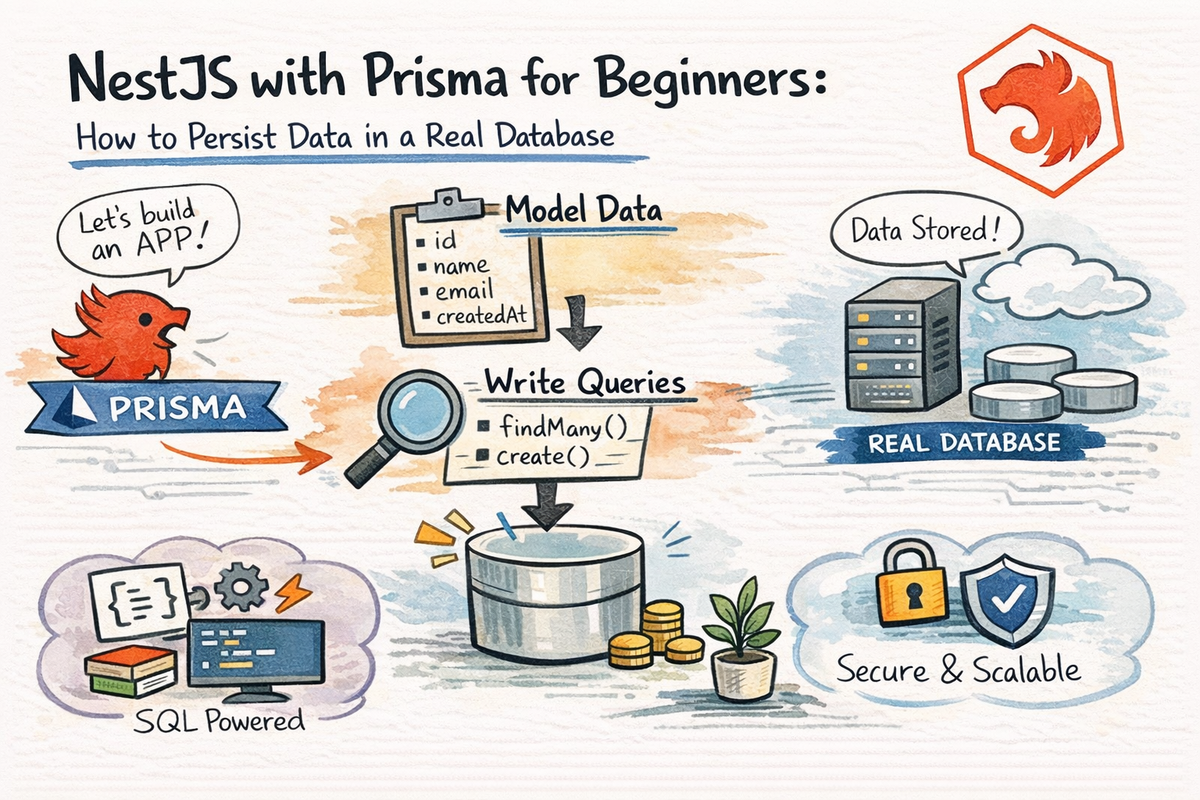
So far in this series, we have built a NestJS API that can:
- define routes
- validate input
- organize logic cleanly
- return JSON responses
- feel like a real backend
Very nice.
But there is still one big problem:
the data is probably living in memory
Which is totally fine for learning.
And completely terrible for real applications.
Because the moment your app restarts:
- your fake data disappears
- your “database” becomes a memory of a database
- and your API becomes more of a demo than a system
This is where Prisma comes in.
Prisma is an ORM and database toolkit that gives you type-safe access to databases like PostgreSQL, MySQL, SQLite, and others. Prisma’s current docs describe it as a type-safe ORM for databases including Postgres, MySQL, and SQLite, and Nest has an official Prisma recipe specifically for integrating it into NestJS.
In this article, we are going to use Prisma as the bridge between:
- a working NestJS API
- and
- a real database-backed application
By the end, you will understand:
- why in-memory data is not enough
- how Prisma fits into a NestJS project
- what
schema.prismais - how to configure
DATABASE_URL - how migrations work
- how to create a
PrismaService - how to use Prisma inside your Nest services for real CRUD
Let’s make your API remember things.
Why This Chapter Matters So Much
A backend without persistence is useful for learning structure.
But once you want a real app, you need:
- data that survives restarts
- a real schema
- actual database reads and writes
- predictable changes to that schema over time
That is exactly the kind of workflow Prisma is built for.
Prisma’s docs describe the Prisma schema as the main configuration point for your ORM setup, containing your database connection and your data model. Prisma Migrate is then used to keep the database schema in sync with your Prisma schema as it evolves.
So this chapter is not just “add one more tool.”
It is the moment your NestJS API starts becoming an actual application.
What Prisma Is in Plain English
Prisma gives you a structured way to:
- define your data models
- generate a type-safe client
- run migrations
- query your database from TypeScript code
The current Prisma docs describe the CLI as the tool for initializing Prisma, generating Prisma Client, and managing migrations, while the generated Prisma Client is the type-safe query interface tailored to your schema.
So instead of manually writing raw SQL for every simple operation, Prisma lets you do things like:
- create a user
- find many posts
- update a record
- delete a record
in a way that feels very TypeScript-friendly.
That makes it a very natural fit for NestJS.
Why Prisma Fits Well with NestJS
NestJS likes:
- structure
- modules
- services
- dependency injection
- clear boundaries
Prisma also likes:
- structure
- schemas
- generated clients
- typed access patterns
- predictable database workflows
That is why they pair so well.
Nest’s official Prisma recipe shows this exact pattern:
- configure Prisma
- generate the client
- create a
PrismaService - use that service inside Nest providers
- expose CRUD through controllers.
So Prisma does not replace Nest structure.
It plugs into it very cleanly.
Step 1: Install Prisma
The Nest Prisma recipe and Prisma’s Nest guide both start by installing Prisma as a dev dependency and then installing @prisma/client for runtime use. The current Prisma Nest guide also shows database-driver-specific packages for some setups, such as PostgreSQL driver adapters, but the core learning flow still begins with prisma and @prisma/client.
Start with:
npm install prisma --save-dev
npm install @prisma/client
That gives you:
- the Prisma CLI
- the Prisma Client library your app will use at runtime
Very important pair.
Step 2: Initialize Prisma
Prisma’s docs still use npx prisma init as the standard initialization command. The Nest Prisma guide also shows an initialization flow that creates a prisma directory, a schema.prisma file, a prisma.config.ts, and a .env file. (prisma.io)
Run:
npx prisma init
Or, if you want to generate the client into a custom location from the start, Prisma’s Nest guide shows:
npx prisma init --output ../src/generated/prisma
This setup gives you some important files:
prisma/schema.prisma.env- and in the current Prisma flow, often
prisma.config.ts
These are the core pieces of your Prisma setup. (prisma.io)
What schema.prisma Actually Is
The Prisma schema is the main configuration file for Prisma ORM. Prisma’s docs say it typically contains three main kinds of things:
- the generator
- the datasource
- the data model. (prisma.io)
That means this file usually defines:
- where Prisma Client should be generated
- what database provider you are using
- what your models look like
A simple example:
generator client {
  provider = "prisma-client"
  output   = "../src/generated/prisma"
}

datasource db {
  provider = "postgresql"
  url      = env("DATABASE_URL")
}

model User {
  id    Int     @id @default(autoincrement())
  email String  @unique
  name  String?
  posts Post[]
}

model Post {
  id        Int      @id @default(autoincrement())
  title     String
  content   String?
  published Boolean  @default(false)
  authorId  Int
  author    User     @relation(fields: [authorId], references: [id])
}
This structure follows the current Prisma Nest guide closely: generator block, datasource block, then models like User and Post. (prisma.io)
A Very Important Current Detail: moduleFormat = "cjs"
This is one of the easiest things to miss if you follow older Prisma tutorials.
Nest’s current Prisma recipe explicitly notes that Prisma v7 ships as ESM by default, while standard Nest setups are commonly CommonJS, so you need to set moduleFormat = "cjs" in the Prisma generator configuration for this combo to work cleanly.
So in the current Nest + Prisma setup, your generator block should look like this:
generator client {
  provider     = "prisma-client"
  output       = "../src/generated/prisma"
  moduleFormat = "cjs"
}
That small line saves a lot of confusion.
Very much worth knowing early.
Step 3: Configure DATABASE_URL
Prisma uses the DATABASE_URL environment variable to connect to your database. The current Nest guide says .env is typically used to store database credentials, and the datasource block reads from env("DATABASE_URL"). (prisma.io)
For PostgreSQL, a typical value looks like:
DATABASE_URL="postgresql://user:password@localhost:5432/mydb?schema=public"
Prisma’s PostgreSQL guide documents that general URL format directly. (prisma.io)
If you want to keep the very first local setup simpler, many tutorials use SQLite, but for most real backend practice, PostgreSQL is the better long-term mental model. Prisma supports both. (prisma.io)
Step 4: Create and Run a Migration
Once your models are in schema.prisma, you need to create the actual database tables.
This is where Prisma Migrate comes in.
Prisma’s Migrate docs say prisma migrate dev is the normal development command for creating and applying migrations from your Prisma schema. It creates a migration history and keeps your database schema in sync with the data model. (prisma.io)
Run:
npx prisma migrate dev --name init
This does the important work of:
- creating migration files
- applying them to the database
- syncing the actual database schema with your Prisma schema
That is the moment your data model stops being theoretical.
Now it is real.
Step 5: Generate Prisma Client
Prisma’s CLI docs say prisma generate generates assets like Prisma Client based on your schema and the generator block, writing the client to the configured output path. (prisma.io)
Run:
npx prisma generate
Now Prisma creates a type-safe client that matches your models.
That means when you use prisma.user.findMany() in TypeScript later, it is based on the actual schema you defined.
That is one of Prisma’s nicest strengths.
Step 6: Create a PrismaService in NestJS
Nest’s official Prisma recipe and Prisma’s Nest guide both show creating a dedicated PrismaService so the Prisma client can be injected like any other Nest provider.
A beginner-friendly version looks like this:
import { Injectable, OnModuleInit } from '@nestjs/common';
import { PrismaClient } from '../generated/prisma/client';

@Injectable()
export class PrismaService extends PrismaClient implements OnModuleInit {
  async onModuleInit() {
    await this.$connect();
  }
}
This is a very Nest-friendly pattern because:
- Prisma stays inside a provider
- other services can inject it cleanly
- database access becomes part of your normal Nest architecture
Very nice fit.
Step 7: Put PrismaService in a Module
Now register it the Nest way.
Example:
import { Global, Module } from '@nestjs/common';
import { PrismaService } from './prisma.service';

@Global()
@Module({
  providers: [PrismaService],
  exports: [PrismaService],
})
export class PrismaModule {}
Then import PrismaModule into your app or feature modules as needed.
This follows normal Nest module behavior: modules organize providers, and exported providers become available to importing modules. Nest’s modules docs still define modules this way.
Step 8: Use Prisma Inside a Nest Service
This is where it starts feeling real.
Instead of an in-memory array, your feature service now uses Prisma.
Example users.service.ts:
import { Injectable } from '@nestjs/common';
import { PrismaService } from '../prisma/prisma.service';
import { CreateUserDto } from './dto/create-user.dto';

@Injectable()
export class UsersService {
  constructor(private readonly prisma: PrismaService) {}

  findAll() {
    return this.prisma.user.findMany();
  }

  findOne(id: number) {
    return this.prisma.user.findUnique({
      where: { id },
    });
  }

  create(data: CreateUserDto) {
    return this.prisma.user.create({
      data,
    });
  }
}
This matches the current Prisma + Nest learning flow: generate the client, wrap it in a Nest service, and then call model methods like findMany, findUnique, and create from your feature services. (prisma.io)
Now your service is no longer pretending to persist data.
It actually does.
Step 9: Expose It Through a Controller
At this point, the controller stays mostly normal.
Example:
import { Body, Controller, Get, Param, ParseIntPipe, Post } from '@nestjs/common';
import { UsersService } from './users.service';
import { CreateUserDto } from './dto/create-user.dto';

@Controller('users')
export class UsersController {
  constructor(private readonly usersService: UsersService) {}

  @Get()
  findAll() {
    return this.usersService.findAll();
  }

  @Get(':id')
  findOne(@Param('id', ParseIntPipe) id: number) {
    return this.usersService.findOne(id);
  }

  @Post()
  create(@Body() body: CreateUserDto) {
    return this.usersService.create(body);
  }
}
That is one of the nice things about adding Prisma to Nest:
your controllers do not suddenly become weird.
The main difference is that the service now talks to a real database.
Why This Pattern Is So Clean
This is the real architectural win.
- Controller handles HTTP
- DTO validates input
- Service contains business logic
- PrismaService handles database access
- Prisma schema defines models and database structure
- Migrations keep the real database in sync
That is a very healthy stack of responsibilities.
And it fits Nest’s style perfectly.
Prisma Migrations Are a Huge Part of Why This Feels Better
A lot of beginners first think:
“I just need database queries.”
But what you really need is:
- a data model
- a repeatable schema evolution process
- a way to keep development and database structure aligned
That is exactly what Prisma Migrate is for.
Prisma’s docs explicitly describe Prisma Migrate as the tool that keeps your database schema in sync with your Prisma schema and generates a history of SQL migration files. (prisma.io)
That means when your schema changes later, you are not just manually improvising on the database.
You have a workflow.
That is a very big upgrade.
A Simple Example Model Set
If you want a good beginner-first setup, use two related models like:
UserPost
That lets you learn:
- basic fields
- IDs
- unique fields
- one-to-many relationships
- Prisma relation syntax
And Prisma’s Nest guide uses that exact kind of relationship-oriented example for getting started. (prisma.io)
This is enough to build:
- create user
- list users
- create post
- get posts by user
Very good practice surface.
What You Should Put in .env
Keep the database connection string in .env, not hardcoded in source code.
That is both the current Prisma flow and the current Nest config-friendly habit. Prisma’s Nest guide explicitly uses .env for the connection string, and Nest’s configuration docs recommend centralizing environment-based configuration. (prisma.io)
Example:
DATABASE_URL="postgresql://postgres:postgres@localhost:5432/codewithziye?schema=public"
This becomes especially important later when you have:
- local
- staging
- production
Different environments should not mean editing source code every time.
Common Beginner Mistakes with Prisma in NestJS
Let’s save a few future headaches.
1. Forgetting to run migrations
Changing schema.prisma alone does not magically update your real database.
You still need prisma migrate dev in development. Prisma’s migration docs are very explicit about this workflow. (prisma.io)
2. Forgetting to generate the client
If the schema changes, the generated client needs to match.
That is why prisma generate matters. (prisma.io)
3. Not setting moduleFormat = "cjs" in the current Nest recipe
This is one of the most current gotchas. Nest’s Prisma recipe explicitly calls it out for Prisma v7 with CommonJS Nest projects.
4. Putting Prisma logic directly in controllers
You can, but it is not a great pattern.
Keep database access in services.
5. Treating DTOs and Prisma models as the same thing
They are related, but they are not the same responsibility.
- DTOs are for transport/input validation
- Prisma models are for database shape
That separation matters.
6. Hardcoding DB credentials
Please do not.
Your future self and your deployment pipeline will both be annoyed.
A Good Mental Model to Remember
Here is the simplest way to carry Prisma in your head inside a Nest project:
schema.prisma= defines database structure and generator settings- migration = updates the real database schema
- generated Prisma Client = typed database API
PrismaService= Nest wrapper around Prisma Client- feature services = use PrismaService to perform CRUD
- controllers = stay focused on HTTP, not database wiring
That is the pattern.
And once it clicks, database persistence feels much less intimidating.
Why Prisma Is a Great Choice for This Series
For this beginner series, Prisma is a strong fit because it teaches the right things in a clear order:
- define your data model
- generate a client
- migrate the schema
- use the client through a Nest service
- connect it to real endpoints
That is very teachable.
And very practical.
Also, Prisma’s type-safe client fits really nicely with the Nest + TypeScript mindset.
That makes the learning curve feel cleaner than many older “magic ORM” workflows.
Final Thoughts
This is the chapter where your NestJS API starts behaving like a real backend.
Nest’s current Prisma recipe and Prisma’s current docs support a very clean path:
- install Prisma and Prisma Client,
- initialize Prisma,
- define models in
schema.prisma, - set
DATABASE_URL, - run
prisma migrate dev, - generate Prisma Client,
- wrap it in a
PrismaService, - and inject it into your Nest services for real CRUD.
That is a huge step forward.
Because now your app is no longer working with temporary in-memory data.
It can actually persist records in a real database.
And that changes everything.
In the next article, we’ll make that API feel even more production-ready with better validation, versioning, and Swagger documentation.
Real Interview Questions
What is Prisma in a NestJS app?
Prisma is an ORM and database toolkit that gives your NestJS application type-safe access to databases like PostgreSQL, MySQL, and SQLite. Nest also has an official Prisma recipe for integrating it into Nest applications.
How do I start Prisma in a NestJS project?
The standard starting point is to install Prisma, then run npx prisma init, which creates the Prisma setup files such as schema.prisma and .env.
What does schema.prisma do?
It is Prisma’s main configuration file. It defines your datasource, client generator, and data models.
Why do I need prisma migrate dev?
Because migrations are how Prisma applies your schema changes to the real database in development and keeps the database schema in sync with your Prisma schema.
Why do current NestJS Prisma setups need moduleFormat = "cjs"?
Nest’s official Prisma recipe notes that Prisma v7 defaults to ESM, while common Nest projects still use CommonJS, so moduleFormat = "cjs" is required in that setup.
Should I use Prisma directly in a controller?
It is better to wrap Prisma in a PrismaService and use it inside feature services, which matches Nest’s architecture and the official Nest Prisma recipe.
Suggested Internal Links for CodeWithZiye.com
- Build Your First REST API with NestJS
- REST API Best Practices in NestJS: Validation, Versioning, and Swagger
- How to Test NestJS Applications: Unit, Integration, and e2e
- Before You Deploy: NestJS Performance, Security, and Production Checklist